Exports
What gets a finding out of the dashboard and in front of the person who can act on it.
SARIF 2.1.0
For GitHub code scanning, GitLab and Azure DevOps.
This is the export that matters most in practice, because it puts the finding on the pull request that introduced it rather than on a dashboard somebody visits on Thursdays. A finding annotated on the diff gets fixed; the same finding in a list gets triaged.
OpenVEX
A VEX document built from your triage decisions — what you assessed as not affected, and why.
Hand it to whoever consumes your SBOM. Without it they re-derive your entire backlog from your dependency list and arrive at conclusions you already investigated and dismissed.
How a triage reads in VEX
OpenVEX, CSAF and CycloneDX VEX — per scan, per project and for the whole estate — all read an issue's triage through the same table, so the same issue says the same thing in every signed document (decision 0041):
| Triage | CycloneDX analysis |
OpenVEX | CSAF product_status |
|---|---|---|---|
| under review, pending approval | in_triage |
under_investigation |
under_investigation |
| affected | exploitable |
affected |
known_affected |
| will not fix — risk accepted | exploitable, response will_not_fix |
affected, action statement "Will not fix: …" |
known_affected, remediation no_fix_planned |
| not affected, with a justification | not_affected and its CycloneDX justification |
not_affected and the justification |
known_not_affected and the justification as a flag |
| not affected, without a justification | in_triage |
under_investigation |
under_investigation |
| fixed, or the issue resolved | resolved |
fixed |
fixed |
- An accepted risk is exported as exposure. The customer is owed the answer affected, no fix planned — not a clearance nobody argued.
- A justification is never invented. A not affected recorded without one — older or imported
rows — leaves as under investigation: nobody made that claim. CycloneDX gets its own vocabulary
(
code_not_present,code_not_reachable,requires_environment,protected_by_mitigating_control), which its schema accepts where OpenVEX's labels are not. - A request awaiting approval is under investigation everywhere, until somebody grants it.
In SARIF, the three settled statuses — not affected, will not fix, fixed — are marked suppressed, so a code-scanning view stops showing what was decided.
CSV
Issues as a flat file, for the analysis somebody wants to run in their own tool.
SBOM
The SBOM exactly as the cataloguer produced it, unmodified.
Worth being clear about why it is not reshaped: an SBOM is evidence, and evidence that passed through a transformation is evidence about the transformation too.
Documents written for people
Two PDF reports, written to be read rather than parsed:
- a target's posture — where it stands now;
- its detection and triage history — what was found, and what was decided about it.
See History and evidence.
Compliance evidence bundle
A cryptographically signed ZIP, covered under Compliance.
Project export
A whole project as one signed JSON document — the input a report plugin
receives, and what an organisation writes its own plugin against. Download the export, in the
Reports section of the project's page (below), saves it with your session; a pipeline asks
the route with an integration key holding the export scope.
curl -H "X-API-Key: $KEY" -o export.zip https://vectispire.example.org/api/v1/projects/42/export
unzip export.zip                       # export.json and export.json.sig
cosign verify-blob --key public-key.pub --signature export.json.sig export.json
public-key.pub is /api/v1/crypto/public-key.pub, the key every Vectispire document is signed with.
What it holds, every part present even when empty — an empty list means "nothing", null means
"not recorded", never zero: the project and the repositories and images filed in it; each target's
newest completed scan (what it examined, what failed, each plugin's state) and the gate's last verdict;
every issue that is not resolved, with its triage decision; counts per type, severity, state and triage
status, resolved issues included; the consolidated components; the project's compliance state; and the
checklist statements — each signed-off one with the digest of its signed package, and the open revision
marked draft.
What it never holds: source code or anything quoted from it — an issue's text travels only for vulnerabilities, licences and end of life, never a secret's or a rule's message; a secret's value; a credential (a token in a repository URL is masked); an evidence file's bytes (named by SHA-256); an e-mail address — people appear by account id and display name, and a display name that is an address is left out.
Who may take one: an account that may act (not the platform governor) or an auditor, who sees the
whole project, its images included. Anybody else is told the project does not exist (404), the same
words as for a project that does not. An integration key restricted to one repository never sees a whole
project. Each download is audited (PROJECT_EXPORTED) and sent to the SIEM as VECTI-SEC-032.
Bounded, never cut short: over 100,000 issues or components, or 64 MiB of JSON, the export is
refused (409 project-export-too-large, naming the part, the figure and the bound) rather than signed
incomplete.
Its schema is vectispire-project-export, versioned MAJOR.MINOR and stated in the export's first
two fields. The installation serves the one it produces at /api/v1/schemas/project-export/1; the file
is v1.schema.json
in the source. A minor only adds optional fields: a plugin must ignore what it does not know. A major is
a new file, and the release notes say when one appears and when the previous one stops being produced.
Reports
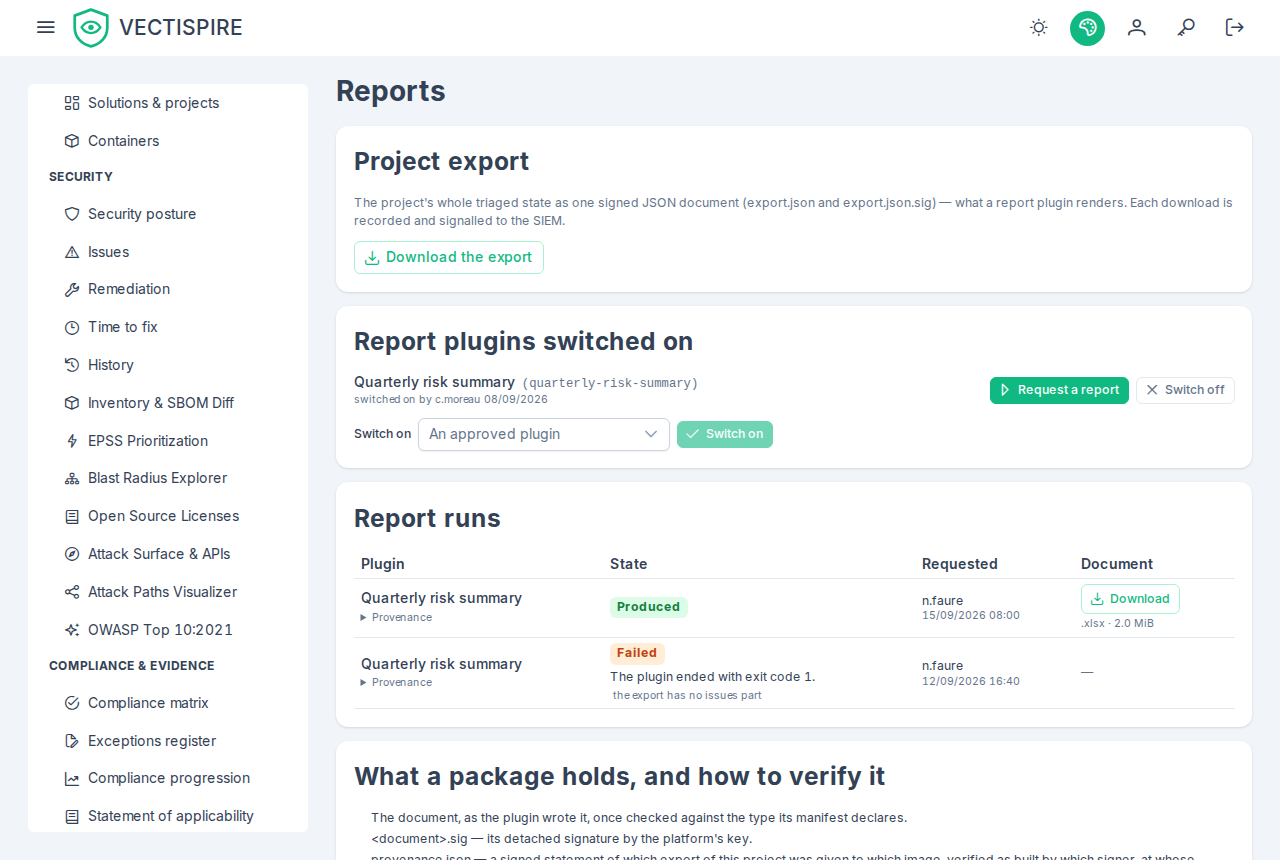
A report is your organisation's own document — a checklist in your security function's spreadsheet layout, a quarterly summary in your management's template — rendered from a project's export by a report plugin your administrators registered and approved. Vectispire gives the plugin the export, checks the file it writes, and signs it with the platform's key. Reports live on the project's page, in the Reports section.
Who sees what
The section is shown to anybody who sees the whole project, its images included: a report and the export describe the whole project, so they are built for nobody who sees only part of it. A reader who sees part of the project is told so, and offered nothing.
| You are | You can |
|---|---|
| Any account that sees the whole project | read the plugins switched on for it and every run, and download a produced document |
| A write account (developer, security champion, administrator, CISO) or an auditor | also request a report and download the export |
| A security lead (platform governor, administrator, CISO) | also switch an approved plugin on or off for the project |
The platform governor acts on nothing a project holds: the two buttons stay visible to them, disabled, with the reason. Each request and each export download is recorded in the audit log, and an export leaving the platform is signalled to the SIEM.
Requesting a report
Under Report plugins switched on, press Request a report beside the plugin. The run appears under Report runs, Waiting, and the page follows it until it ends: it asks the server again every five seconds while a run is waiting or running, and stops once none is. One run of a plugin at a time: the button stays disabled while one is under way, and that run is the one to wait for.
A run ends in one of three states:
| State | What it means |
|---|---|
| Produced | The plugin wrote its document, the document is what its manifest declares, and its signed package is stored. |
| Failed | Work went wrong: the plugin exited with an error, ran past its timeout, wrote nothing or too much, or no executor took the run. The reason is shown in words, with the plugin's own message when it wrote one. Ask again once the cause is fixed. |
| Refused | The image had no verified signer, or the file it wrote is not what its manifest declares. Refused is not a failure, and it is shown in red rather than amber: it is how a tampered plugin, or one nobody vouched for, shows itself. Tell your administrators. |
When the request itself is refused, the page says why: the platform governor disabled the plugin, it has no approved manifest, a run of it is already waiting or running, or this installation cannot run report plugins at all — its built-in worker is switched off, and this version does not run them on agents.
Provenance, under each run, lists what it ran with: the manifest and image digests, the signer, the export's SHA-256 and schema version, the document's and the package's SHA-256, and the signing key.
Downloading a document
Download on a produced run saves its package, a zip named by the server,
report-<run>-<plugin>.zip, of three files:
- the document, as the plugin wrote it, once checked against the type its manifest declares;
<document>.sig, its detached signature by the platform's key;provenance.json, a signed statement of which export of this project was given to which image, verified as built by which signer, at whose request, and the document's SHA-256.
A document is kept for the evidence window. Once that has passed, the page says the document is no longer available; the run and its digests stay.
Verifying a document
Verify the package against the instance's public key, obtained separately — never one handed to you with the document. The commands are in the administration guide, the document, and how to verify it, and the Reports section links to them.
What the signature means: provenance, not truth. It says which export this installation gave which image, at whose request, and that these are the bytes the image wrote. It does not say the document renders the export faithfully: the export is kept with the run and the image is pinned, so anybody who doubts a document can render the export again with the same image and compare.
A withdrawn document is marked, and still downloadable. When the platform governor withdraws a plugin's manifest, every document it produced is marked Withdrawn on its run, with the date, who withdrew it and the justification. Its download is still offered — it is the evidence of what was handed out — and after it the page says that the signature still verifies but the installation no longer stands by the document. Anybody holding a copy can ask whether the installation still stands by it (how).
Switching a plugin on for a project
Security leads see a Switch on selector under the plugins, offering the approved plugins not yet on for the project. Switch off beside a plugin stops new requests; its runs and documents stay. Registering, approving and withdrawing plugins is under Administration → Report plugins (how).
Branding
Exports and reports carry your instance name where VECTISPIRE_BRAND_NAME is set —
header, PDFs, SARIF, VEX and CSAF output. See
Configuration.